This is a new PiHole I setup about a year ago. Was working perfectly with my old Netgear XR500.
I recently moved, got a new router, and set it all back up and it was working mostly fine for a couple months.
I decided (mistake?) to set all of my internet stuff to reboot every morning at 3am. I did this by attaching a smart switch that just cuts off power and then reinstates it 15 minutes later. I know this is not ideal to basically shut down hardware while it’s working abruptly, but I don’t have the knowledge to set up scripts or whatever is needed to reboot each device individually. The devices include the Rasp Pi 5, router, modem, homebase 3 (eufy), and a network switch.
I feel like a week or 2 after doing this the problem started happening, and I thought maybe the Rasp Pi’s OS (Debian) got corrupted from the abrupt power cuts. So yesterday I completely wiped the OS and went with Ubuntu instead. Got it PiHole fully up and functional and it seemed to work great until this morning again I had to restart DNS resolver.
So at this point I don’t think it’s the Pi or the PiHole, and I’m more leaning towards my router now. I’m running a NetGear Nighthawk RS280 and am wondering if it’s doing something to change my DNS settings without actually changing them in the routers GUI. Right now, I have to router to look specifically and only at the PiHole’s IP as its DNS server (192.168.1.200 - static).
Any help would be appreciated, thank you.
Edit: forgot to add as a temporary solution I put in a bunch of cron jobs to restart it but would rather not have to do this as it seems to be random throughout the day sometimes.
What's the reason for doing so?
Cutting the power will invite file system corruption.
You should at least shut down your machine hosting Pi-hole gracefully.
As you are already using cron jobs on your Pi-hole, you may as well extend or replace them with a scheduled shutdown.
Your debug log shows your router to distribute its own IP as local DNS server:
*** [ DIAGNOSING ]: Discovering active DHCP servers (takes 6 seconds)
   Scanning all your interfaces for DHCP servers and IPv6 routers

   * Received 300 bytes from 192.168.1.1 @ eth0
     Offered IP address: 192.168.1.200
     (…)
     DHCP options:
      Message type: DHCPOFFER (2)
      (…)
      router: 192.168.1.1
      dns-server: 192.168.1.1
This would suggest that you've pointed your router’s upstream DNS to Pi-hole, in which case your network clients will talk to you router, and your router will then forward DNS requests to Pi-hole.
That is a valid configuration, but you won't be able to attribute DNS requests to individual clients, as Pi-hole will receive all DNS requests as originating from your router’s IP.
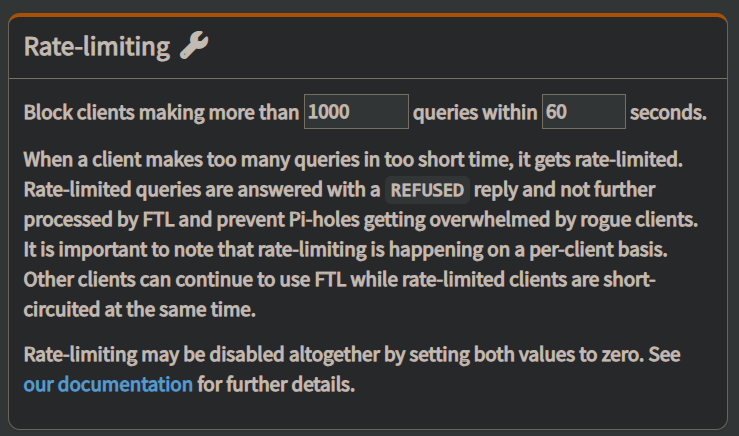
And in a busy network, that would trigger Pi-hole's rate limit at times, resulting in REFUSED replies for your router's requests, until the rate limit would cool off - and this would affect all clients.
Your debug log has caught at least one instance of that happening:
2025-08-11 07:49:26.525 CDT [2208M] INFO: Rate-limiting 192.168.1.1 for at least 4 seconds
2025-08-11 07:49:30.664 CDT [2208/T2475] INFO: Still rate-limiting 192.168.1.1 as it made additional 2609 queries
2025-08-11 07:50:30.663 CDT [2208/T2475] INFO: Still rate-limiting 192.168.1.1 as it made additional 10248 queries
2025-08-11 07:51:30.663 CDT [2208/T2475] INFO: Still rate-limiting 192.168.1.1 as it made additional 13969 queries
2025-08-11 07:52:30.666 CDT [2208/T2475] INFO: Still rate-limiting 192.168.1.1 as it made additional 8321 queries
If your router supports it, it would be preferred if you'd configure your router's DHCP server to distribute Pi-hole as sole DNS server.
As clients would then be talking directly to Pi-hole, they are far less likely to trigger a rate limit. If single misbehaving client would still send excessive amounts of requests, it would still be rate limited, but that would then only affect that one client.
Thank you for your detailed response. Can you dumb it down a little for me?
“Your debug log shows your router to distribute its own IP as local DNS server:”
Are you saying that when the Pi-hole rate limits, it kinda ‘shuts down’ and as a result the router can’t get DNS records, so it uses its own IP as a DNS server as a fallback?
The configuration I’m doing right now has always been the one I’ve done, the idea being is I want every device in my network to use the Pi-hole for DNS instead of individual clients. The only difference now is we have a ton of smart/internet-connected devices (maybe 40-50 total).
“If your router supports it, it would be preferred if you'd configure your router's DHCP server to distribute Pi-hole as sole DNS server. As clients would then be talking directly to Pi-hole, they are far less likely to trigger a rate limit. If single misbehaving client would still send excessive amounts of requests, it would still be rate limited, but that would then only affect that one client.”
I can definitely set this up, but I’ll be honest, I’m not super interested in making the issue go from network-wide to just individual devices because whatever devices trigger rate limits, I may not notice they are offline when I expect them to be online.
Is there a different way to go about this? Like increasing the Pi-holes rate limit? Reducing the number of blocked domains? Anything?
No.
Your router is aggregating DNS traffic of your entire network, and that excessive amount of DNS requests from just one client (your router) triggers Pi-hole's rate limit.
None of your clients uses Pi-hole for DNS, only your router does. Your clients talk to your router for DNS, because your router's DHCP server tells them so (as demonstrated by your debug log excerpt above)
Your current DNS resolution chain is
client router Pi-hole public DNS
In your case, I don't suspect single misbehaving devices - with your substantial increase of clients, you are ever pushing your router to exceeding Pi-hole's rate limit, which will then cut your entire network from DNS resolution at times.
I didn't suggest to configure each of your devices individually:
This would result in your router telling clients to use your Pi-hole machine's IP (instead of its own).
The resulting DNS resolution chain would then be
client Pi-hole public DNS
You'd have to consult your router's documentation and support for further details on if and how it would support that configuration.
Doesn’t look like I can configure my router’s DHCP server (Nighthawk RS280) - but I found an article on these forums just saying to disable my router’s DHCP server and use the Pi-hole’s. Is there any issue with this route, either? Article: How do I use Pi-hole's built in DHCP server (and why would I want to)?
If possible, setup your router to hand out the address of your Pihole for DNS. The docs for that router state that DHCP setup is at ADVANCED > Setup > LAN Setup. Just configure the DNS here, assuming you’re allowed, to use ONLY the Pihole address for DNS. Then the next time your devices check in for DHCP renewal, the router will tell them “use this address for DNS now.”
You can also disable DHCP on the router by clearing the Use Router as DHCP Server box on this same setup page; then you can use Pihole for DHCP, but the above is a bit cleaner and less disruptive in my opinion.
If, for some reason, the router won’t let you change the DHCP-assigned DNS server, then you will probably want to disable the router’s DHCP server and go with Pihole’s. Some unverified info on my search suggests you can’t change this on the Nighthawk easily or at all, but firmware updates or inaccuracies with Internet info may change that.
I set the Pi-hole to be the DHCP server and disabled the one in my router, restarted everything, but then the internet stopped working, and I could still access my router, but not the Pi-hole.
After some googling, it sounds like the Pi-hole needs a static IP since it’s looking at the old DHCP lease?
I’m doing more googling but not finding anything on how to set it to a static IP for it. I’m a networking noob, and that isn’t helping.
Yes, best practice and Pihole docs recommendation is to use a static IP on your Pihole for this very reason.
How to set this can depend on you OS, or I’d tell you step by step. Here’s what Google says, but keep in mind it’s an AI response:
Setting a static IP address on Ubuntu, including version 25, is primarily handled through Netplan configuration files.
1. Identify the Network Interface:
First, determine the name of your network interface (e.g., eth0, ens33). You can find this by running:
Code
ip a
Look for the interface that is connected and has an IP address assigned.
2. Edit the Netplan Configuration File:
Ubuntu uses Netplan for network configuration. The main configuration file is typically located at /etc/netplan/00-installer-config.yaml. Open this file using a text editor with root privileges:
Code
sudo nano /etc/netplan/00-installer-config.yaml
3. Modify the Configuration for Static IP:
Locate the section corresponding to your network interface. If it's currently configured for DHCP, you'll see dhcp4: yes. Change this to dhcp4: no and add the static IP information.
A typical static IP configuration looks like this:
Code
network:
  ethernets:
    <your_interface_name>:  # Replace with your actual interface name (e.g., eth0)
      addresses:
        - 192.168.1.100/24  # Replace with your desired static IP and subnet mask
      gateway4: 192.168.1.1 # Replace with your gateway IP
      nameservers:
        addresses:
          - 8.8.8.8         # Primary DNS server
          - 8.8.4.4         # Secondary DNS server
      dhcp4: no
  version: 2
Important:
Replace <your_interface_name> with the actual name of your network interface.
Adjust the addresses, gateway4, and nameservers to match your specific network configuration. The /24 in the addresses line represents the subnet mask (e.g., 255.255.255.0).
4. Apply the Changes:
Save the file (Ctrl+X, then Y, then Enter in nano) and apply the new Netplan configuration:
A static IP is an IP address that you configure your client/computer to use all the time, and it will never check in with a DHCP server to find out what address it should use.
There are non-changing addresses that can be assigned by DHCP, but those are often referred to as “reserved” rather that static addresses (although lots of people use the terms interchangably).
The gist of this is that you are telling Ubuntu on your Pihole device to always use 192.168.1.200. It will not look for a DHCP server to tell it what the address should be. And the reason for doing that is pretty much what you ran into above – if you tell it to get an address from DHCP (even a reserved one), if it can’t find the DHCP server, it doesn’t get an address (and ultimately DNS lookups fail for your other client devices).
What I personally do is use a DHCP reservation like you do, but I have my Pihole configured to use a static fallback address if it can’t find a DHCP server (and it’s the same address either way). That’s mostly so my DHCP server won’t try to hand out my Pihole’s expected IP address to another machine, but there’s many ways to handle this.
As for your last point (more config needed to see itself as DHCP), not really. Pihole runs the DHCP server service right there in the Pihole settings. That’s all you need to do once you’ve set a static assignment.
Also, you can absolutely do it both ways: have your router assign .200 to the Pihole, but also setup Ubuntu to use a static address – it won’t ask for an address anyway, but it will be reserved at your router in case it ever does ask.
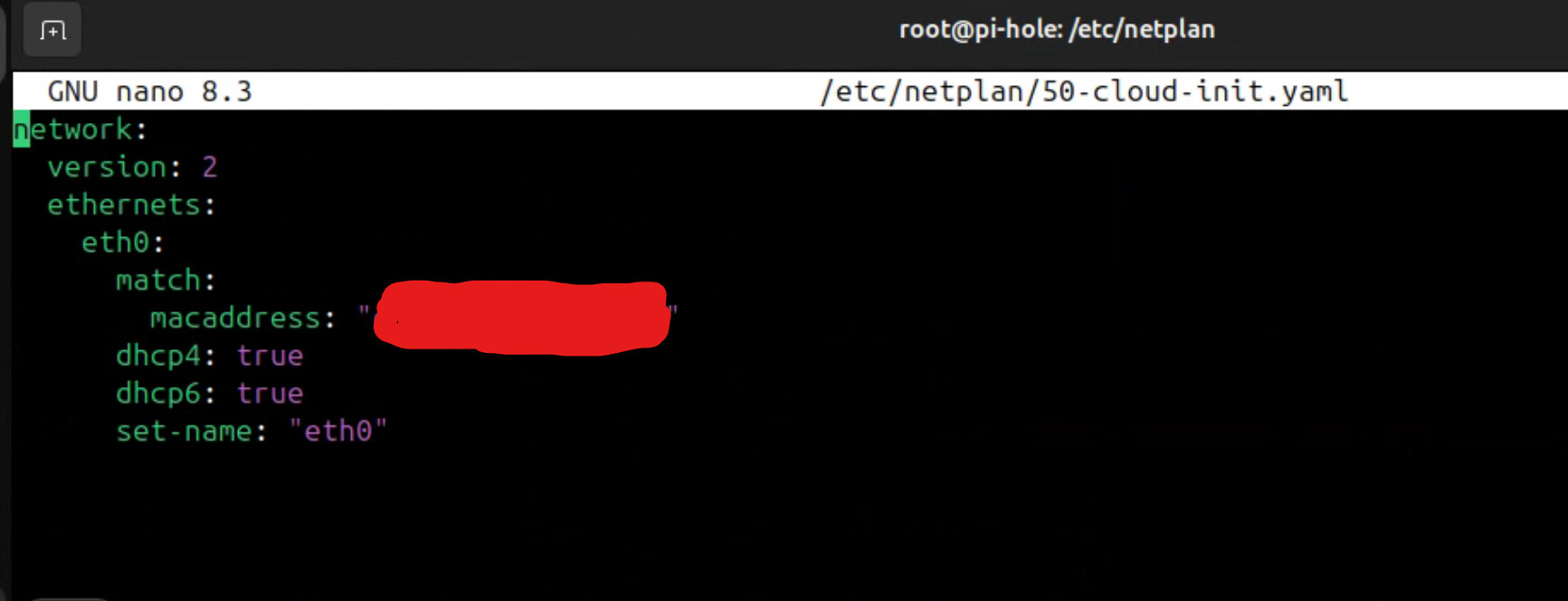
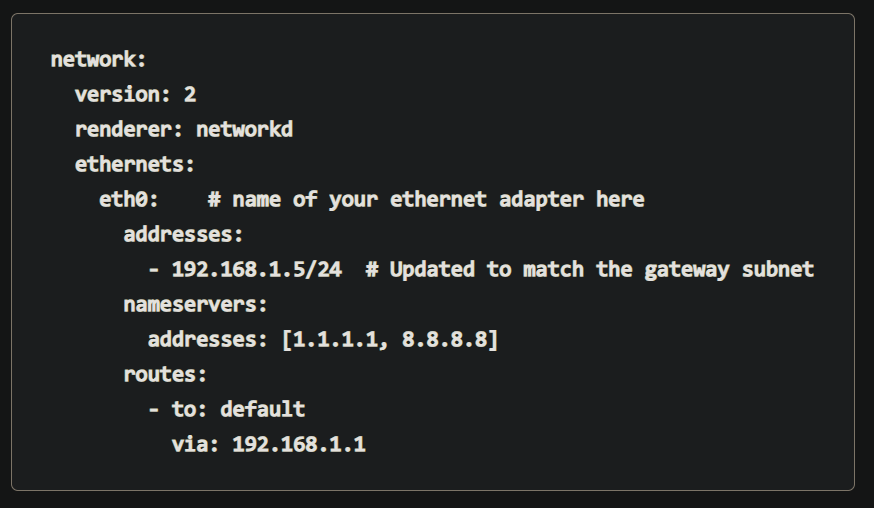
I’m thinking of just copy and pasting this into my yaml file, but a couple questions:
For addresses, I’d just be doing 192.168.1.200/24 correct?
For nameservers, I’m a little confused, do I add an external DNS provider or do I just point it back at itself, so something like [192.168.1.200, 192.168.1.200]
For routers, I’m not exactly sure what to do here, just leave to: default and via: 192.168.1.1? That would be my routers address.
I’m not running Ubuntu myself, but yes you specify your 192.168.1.200/24 under eth0: “addresses:” for the Pihole static IP.
As for your original config, I would think you’d want dhcp4 and dhcp6 to be “no” (or not specified, not sure of the syntax) since you don’t want to use DHCP to get an address for this device.
Looking back at the Google AI answer, it would support my assumption that you have something like this:’
network:
  ethernets:
    eth0:
      addresses:
        -  192.168.1.200/24
      gateway4: 192.168.1.1
      nameservers:
        addresses:
           - 8.8.8.8
           - 1.1.1.1 #enter your choice of one or more public DNS servers here
      dhcp4: no
    version: 2
Not all of that may be necessary, but it’s a start.
 router