Feature Request: Expose DNS Rate-Limit settings in the Web UI
Problem
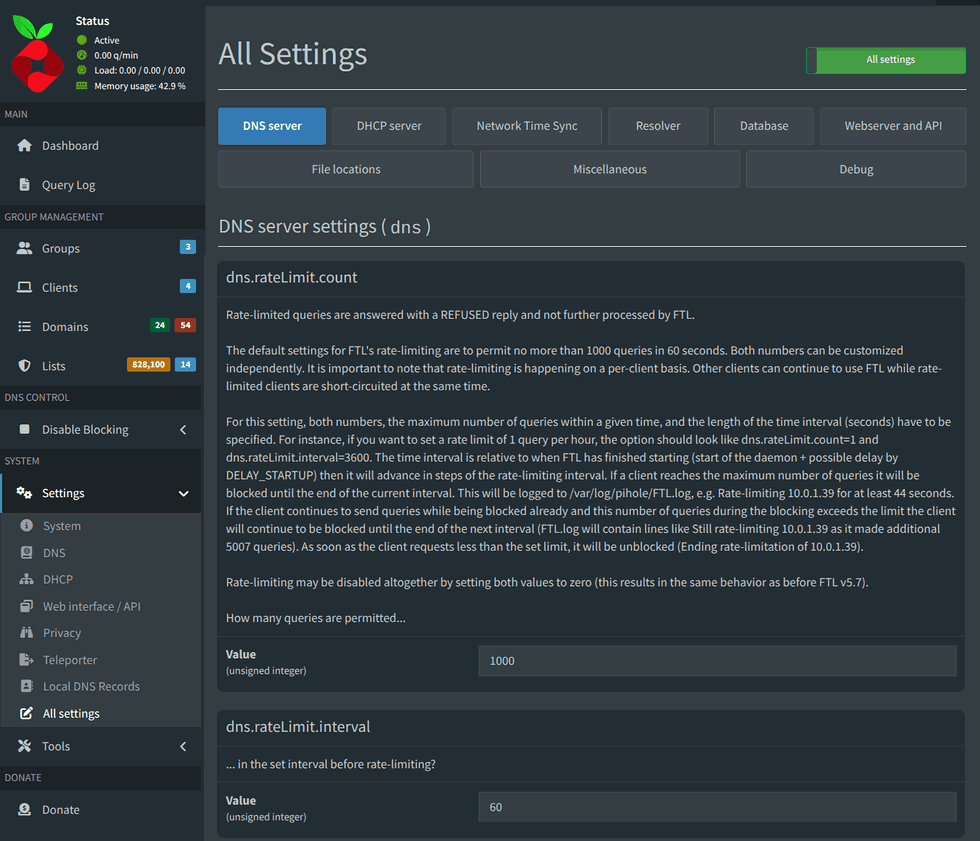
Currently, DNS rate-limiting settings (dns.rateLimit.count and dns.rateLimit.interval) are hidden from the Web UI. For advanced users, adjusting these values often requires direct configuration file editing (pihole.toml). In Pi-hole v6, manual edits to these files are sometimes reverted by the FTL engine upon service restart, forcing users to resort to filesystem-level workarounds (e.g., chattr +i) to maintain their desired configuration.
Use Case
I am a power user running a home lab environment with high-frequency local networking tools (e.g., Input Leap / Barrier). These tools occasionally generate a burst of DNS requests during reloads, which triggers a "false positive" rate-limit flag in FTL.
Because the default rate-limit is too aggressive for this specific local traffic, I had to manually increase the limits to prevent my legitimate local traffic from being "Refused" (Error 5).
Proposed Solution
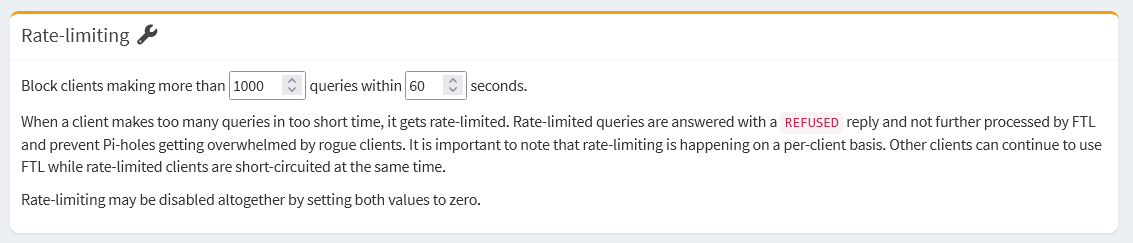
Expose a section in Settings > DNS (or an "Advanced" tab) that allows authorized users to:
-
View current rate-limit settings.
-
Toggle or modify the
countandintervalvalues.
This would prevent the need for users to manually edit the .toml file and subsequently lock it via chattr, which is a fragile solution for an otherwise standard networking configuration.